Cross-platform rule-based proxy client for importing existing subscriptions and rule-based routing; iPhone / iPad: $2.99 one-time through the App Store; Mac, Windows, Android, and Linux versions are free.
2 access optionsiPhone / iPad: $2.99 once · free on other platformsConfig → Rule → PolicyRules determine the connection path
Configuration and rule handling
First distinguish server details, subscription lists, and configuration files, then choose how to connect. These three types of data determine “which server to connect to,” “how to update a list,” and “which path requests take.” They are not the same setting.
Rule: match from top to bottom
Rules determine in order whether a request uses PROXY, DIRECT, or REJECT. In Config, review the active Rule configuration. Put specific domain or address rules first, broader categories next, and use FINAL as a fallback. When troubleshooting, first confirm that Global Routing is set to Config; otherwise, rule changes may not affect the current path. example.com in the example is for syntax only, not a usable server. Save a copy of the original file before editing, change one item at a time, then check matches against actual requests.
On Demand triggers connections based on configured conditions; it does not repair an expired subscription or incorrect password. Find On Demand in Settings, understand the network conditions and trigger behavior, then enable options individually. For initial setup, connect manually first and confirm that the server and rules work before configuring automatic behavior. If the connection returns after you turn it off manually, check the conditions here rather than repeatedly deleting servers. Test once on Wi-Fi and once on cellular to avoid assuming the setup works everywhere based on a single network.
Settings
On Demand
Setup order: verify a manual connection → configure trigger conditions → switch networks and test again.
Global Routing: choose one of three modes
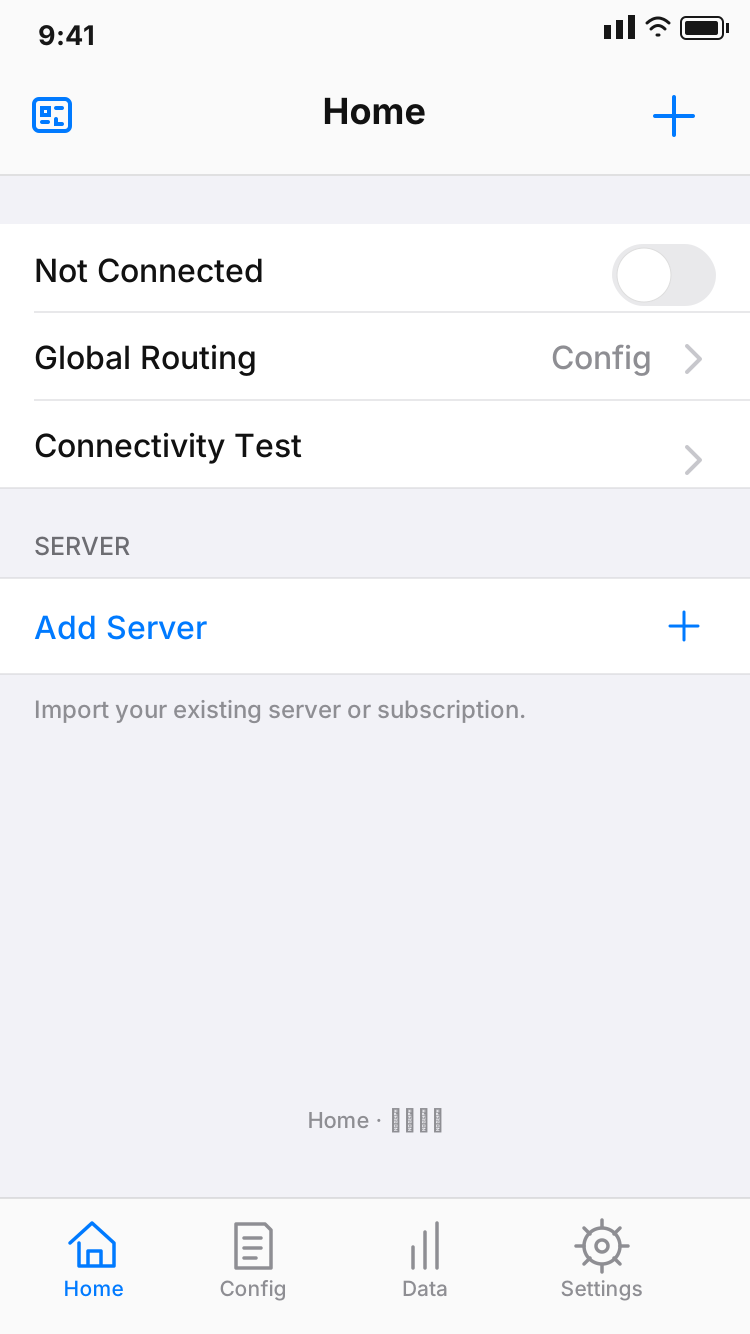
Global Routing on Home determines the current handling mode. Config applies rules from the configuration file; Proxy sends applicable requests through the proxy path; Direct uses a direct connection. For everyday rule routing, start with Config. When troubleshooting, compare the results with Proxy and Direct. Changing modes does not change the server or update a subscription. If Proxy works but a domain fails in Config, check which rule matches; do not change the server, DNS, and configuration file all at once.
Config · match configuration rules
Proxy · use the proxy path
Direct · use the direct path
Subscribe: manage existing server lists
Get your subscription from your service provider. Choose Subscribe through Add Server, paste the complete link, save it, then update the list to create the server entries. After importing, check that the group name and entries appear, then select a server and test the connection. A successful subscription update only confirms that the list was retrieved; it does not mean every server in it can connect. Name multiple subscriptions by purpose and keep them separate. If an update fails, check whether the link has expired and whether it was copied in full. Do not post a complete link containing access credentials publicly.
Add Server
Type → Subscribe
Update the list after saving
For organizing, updating, and deleting existing subscriptions, see the Server Management Manual.
Config: manage rules and servers separately
Config stores settings such as General and Rule; it is not the same as a server subscription. Before switching configurations, check that the file is complete, policy names exist, and FINAL behaves as expected. Keep a copy of the original file when changing DNS or rules so you can restore it if something goes wrong. If you use iCloud sync, check that the expected files and enabled items appear on another device; sync is not a complete backup. Network conditions can differ between devices, so verify the same configuration on each one, especially how it handles local address ranges and private domains.
[General]
bypass-system = true
dns-server = system

[Rule]
FINAL,PROXY
This syntax snippet contains no server details and should not replace a complete configuration.
Diagnostics: verify connections in layers
Even after turning on the connection, verify that actual requests work. First use Connectivity Test on Home to check basic connectivity, then use Diagnostics in Settings to investigate DNS resolution or connection problems. Data shows traffic changes; traffic alone does not confirm that a request to a destination succeeded. A latency test reflects only its specific test conditions, not sustained transfer speed. Record the network, Global Routing mode, and selected server when a problem occurs. Change one condition at a time to identify whether the issue is with rules, DNS, or the server.
Home → Connectivity Test
Settings → Diagnostics
Data
Record conditions without exposing subscription credentials; compare results, not just connection status.
When adding a server manually, set Type to match the information you have. Shadowsocks, VMess, VLESS, Trojan, Hysteria2, WireGuard, HTTP, and SOCKS5 use different fields. Do not reuse a password, identifier, or transport option from one protocol in another. Use the parameters supplied by your service provider. Look up unfamiliar fields before changing them.
Two access options: iPhone / iPad costs $2.99 once through the App Store; Mac (Apple Silicon and Intel), Windows, Android, and Linux versions are free. Desktop and Android installers are provided on this site under /dl/shadowrocket/. Select the appropriate format on the download page.
$2.99 once through the App Store; free on other platforms. Both devices share one purchase. Before reinstalling, confirm that you are using the original purchasing account. Check the App Store page for system requirements. Verify the developer, icon, and app ID before downloading.
Free · Apple Silicon / Intel. Check your chip in About This Mac, then choose the matching dmg. If you see “Cannot verify developer” on first launch, confirm the download source and follow the download page instructions to select “Open Anyway” in Privacy & Security.
Free. The download page provides a 64-bit installer. If SmartScreen appears, first confirm that the file came from this site, then select “More info → Run anyway” to continue. On devices managed by an organization, follow your administrator’s requirements.
Free. Use the arm64 installer. If prompted, allow the browser or file manager you are using to install unknown apps for this installation only. You can turn off the permission afterward. If a link does not open in a messaging app, open the download page in your system browser.
Free · deb / rpm / AppImage. Choose a package based on your distribution and package format; do not judge compatibility by filename alone. AppImage files need execute permission before running. The download page lists the specific commands and troubleshooting steps for installation failures.
The steps below use the iPhone / iPad interface as an example. Before starting, prepare an existing subscription or server details. Complete one manual connection before adding automatic connections, complex rules, or sync settings. This keeps troubleshooting variables to a minimum.
01 / IMPORT
Add Server: import your details
Open Add Server on Home. If you have a subscription, choose Subscribe and paste the complete link. If you have the details for a single server, select Type first, then enter Host, Port, and the relevant authentication fields. Import a QR code with Scan QR Code. Before importing clipboard contents, confirm they came from your existing information. After saving, check whether an entry appears in the SERVER group; its appearance does not confirm that every parameter is correct.
02 / ROUTING
Global Routing: choose a mode
Select the server first, then choose Config, Proxy, or Direct. With a reliable configuration, use Config to check rule routing. To distinguish a rule issue from a connection issue, temporarily compare the result with Proxy. Direct uses a direct connection. After testing, restore the mode you intend to use so a temporary setting is not mistaken for an inactive rule file.
03 / VERIFY
Home: connect and verify
Turn on the connection. If the system asks for VPN configuration permission for the first time, confirm the app source before continuing. Run Connectivity Test, then visit a destination you actually need and check the result. If it fails, troubleshoot in this order: basic network, server parameters, subscription validity, DNS, and rules. Keep a record of the settings when the issue occurs. Do not delete all configurations at once, or you will have nothing to compare against.
Shadowrocket is a closed-source commercial application. This is the official website and manual, covering app access and configuration. Get subscriptions from your service provider; this site does not provide, sell, or recommend servers or subscriptions.
How to identify the app
On the App Store product page, first check that the name is Shadowrocket, then verify the developer, Shadow Launch Technology Limited, and app ID 932747118. The icon should match the official icon on this page. Do not rely only on the name or its position in search results. You can confirm the app ID at the end of the product page URL. Desktop and Android users can go to the download page on this site. Installers are hosted under /dl/shadowrocket/; you do not need to search for an installer by its name.
Store availability and system requirements
App Store availability for iPhone / iPad depends on the region associated with your Apple ID. The app is not currently available in the mainland China App Store. If you cannot find it, check your account region and whether the product page is accessible, then check system compatibility. Search results alone do not determine whether your device is supported. Changing your account region may affect your balance, existing subscriptions, and payment details; review the conditions in your system account settings before deciding. Refer to the App Store page for system requirements; this manual does not substitute a fixed system version for the store information.
One-time purchase and restoring on a new device
The iPhone / iPad version costs $2.99 once through the App Store, with one purchase covering both devices. Mac, Windows, Android, and Linux versions are free. The store may display prices in local currency; the price shown at checkout applies. When changing devices or reinstalling, sign in with the original purchasing account and check your purchases before downloading again. You do not need to buy again just because the app icon is missing from the Home Screen. Purchase records and server details are separate: after restoring the app, check that your original subscriptions, configuration files, and any necessary backups are still available.
Free platforms and update methods
Mac, Windows, Android, and Linux versions are free; the iPhone / iPad version costs $2.99 once through the App Store. Mac has separate Apple Silicon and Intel versions; the chip cannot be identified by the device’s appearance alone. Update the iPhone / iPad app through the App Store. For other platforms, get the latest installer from this site’s download page. Back up your configuration before updating. If the system blocks the first launch, follow the download page’s instructions for allowing the app to open. If your device is managed by an organization, confirm permission with your administrator first.
What subscriptions, configurations, and backups contain
Subscriptions manage server lists; Config manages rules and general settings; the currently selected server determines the connection destination for the proxy path. Keep separate records of all three when organizing them. This helps avoid deleting manually added entries when updating a list or forgetting to check Global Routing after changing configurations. Store subscription links containing access credentials, sharing QR codes, and complete configuration files in a secure location. When describing an issue to someone else, provide only the necessary field names and error details. Remove passwords, access identifiers, and private parameters in links first.
Keep conditions comparable when troubleshooting
If one website fails while other requests work, check whether the issue affects only one domain, one server, or one network. Record whether you are on Wi-Fi or cellular, the current mode, and the selected configuration, then test again. If all requests fail, check basic connectivity and server details first. If only Config fails, check rule order and DNS first. Test results vary with network conditions; do not use a single latency ranking as a permanent measure of server quality. For details on fields and group organization, see the Server Management Manual. For interface terminology, see the Terminology Manual.
Configuration guides and interface references
After your first connection, read the guides that address the issues you encounter. Confirm which interface term applies before changing a setting. When organizing subscriptions, always keep the original information and a recoverable copy of your configuration.
Learn what Home, Config, Proxy, Direct, Data, and Settings do based on where they appear. Distinguish page entry points, routing modes, and rule policies to avoid changing a setting at the wrong level.
When you have multiple subscriptions, name them by source and purpose before checking update results. Learn how to organize groups, identify duplicates, and delete expired subscriptions while keeping manually added server details and reducing recovery work.
Check Shadow Launch Technology Limited, the official icon, and app ID 932747118. Find where to verify these details on the product page and learn why the name in search results alone is not enough to identify an app.